


Until now, the USBASP windows driver wasn’t signed. On older versions of windows this was’t too much of a problem as you could override the signature error. On Windows Vista x64 and Windows 7, it is almost a show stopper.
Various methods have been suggested including a utility called Driver Signature Enforcement Overrider or Pressing F8 at boot time and selecting Disable Driver Signature Enforcement. These approaches were far from ideal.
With the release of libusb-win32 version 1.2.4.0 this is a thing of the past. A new USBASP driver is now available; is based on the libusb-win32 driver; and supports 32 and 64 bit windows. It is partially signed which means windows still produces a warning during installation, but that warning does not prevent installation of the driver.
OK, now for the installation procedure…
- Download the driver from https://protostack.com.au/download/USBasp-win-driver-x86-x64-ia64-v1.2.4.zip and unzip it
- For those having issues with the zip file, please try the following rar file https://protostack.com.au/download/USBasp-win-driver-x86-x64-ia64-v1.2.4.rar
- Insert the USBASP into your USB port
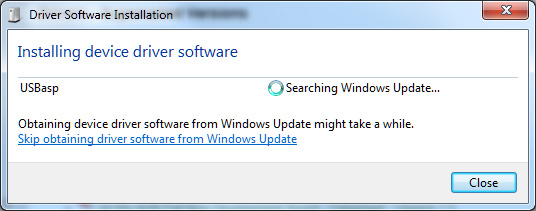
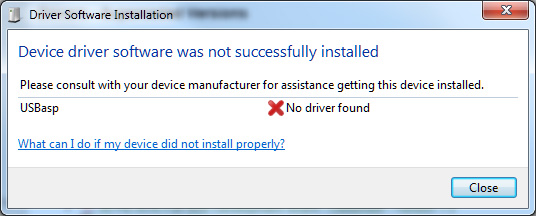
- The system will attempt to install a driver from Windows Update
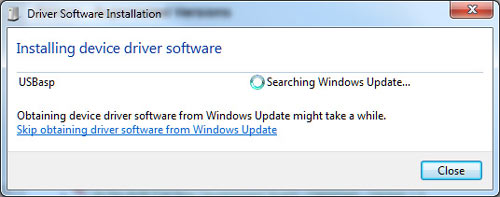
- and will fail
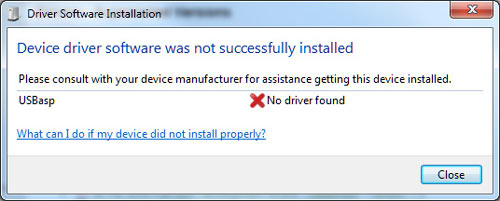
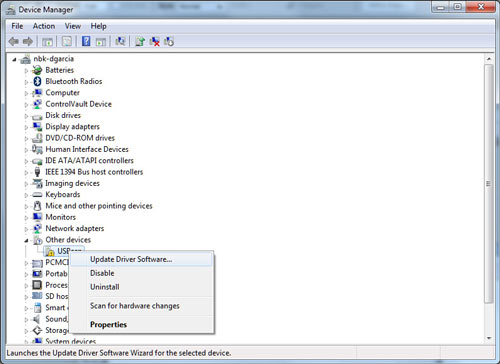
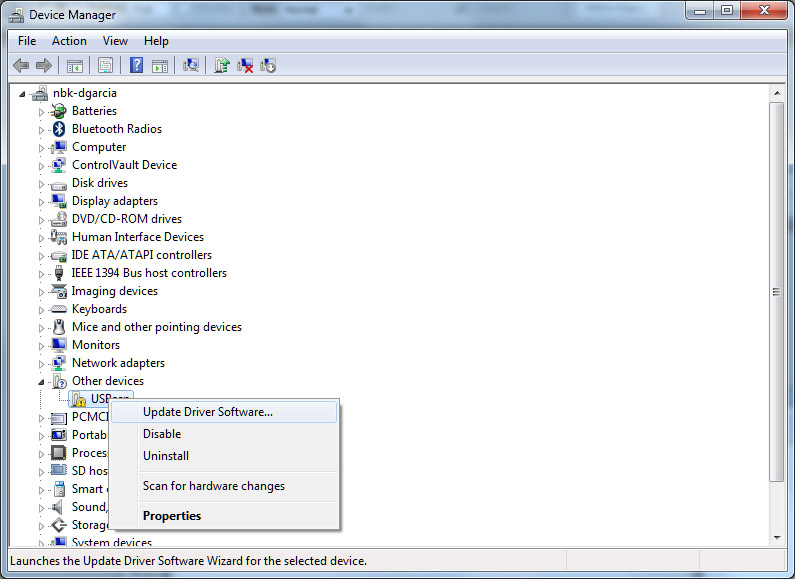
- At this point, go into device manager and find the entry for the USBASP programmer. It should be displayed with a yellow alert icon next to it.
- Right click on the device and select “Update Driver Software”
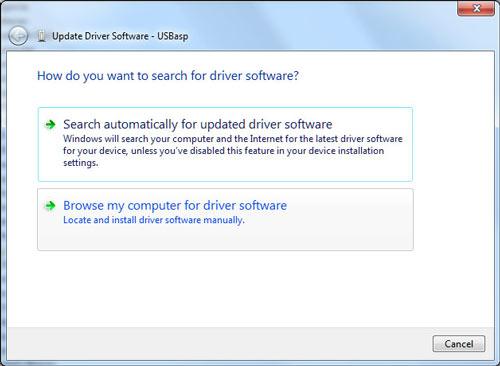
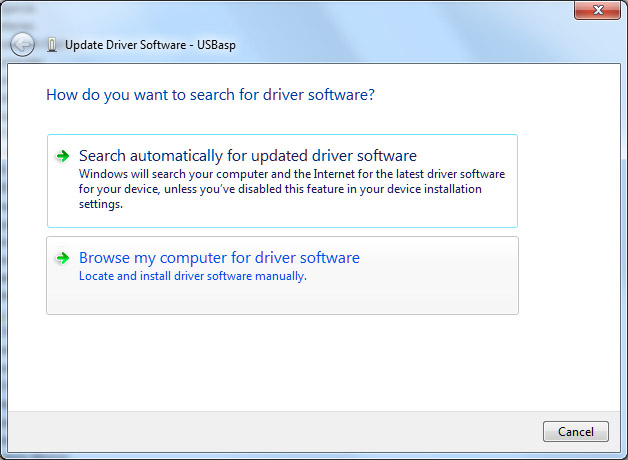
- When prompted “How do you want to search for driver software”, select “Browse my computer for driver software”
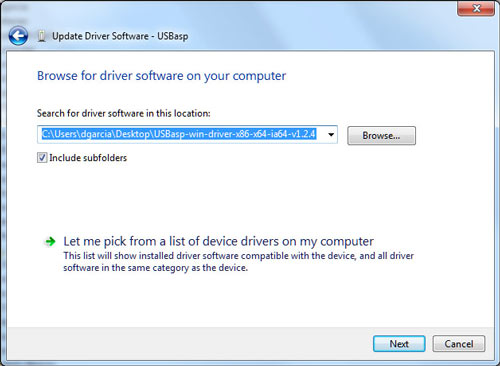
- Select the folder where you unzipped the driver files then click “Next”
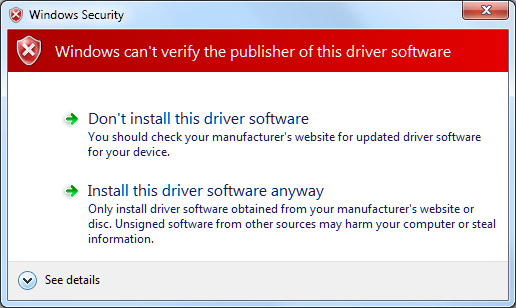
- At this point, windows will give you a nice red warning dialog with the message “Windows can’t verify the publisher of this driver software”.
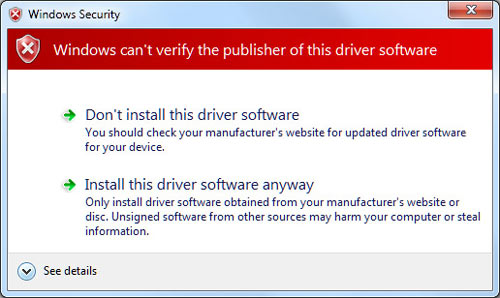
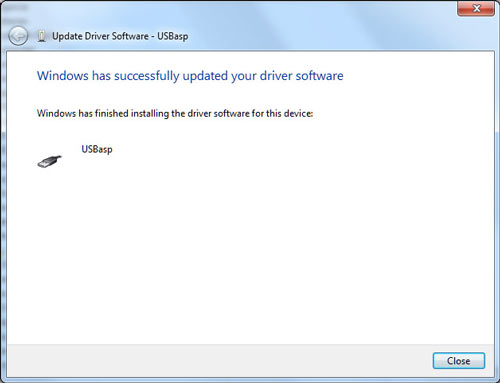
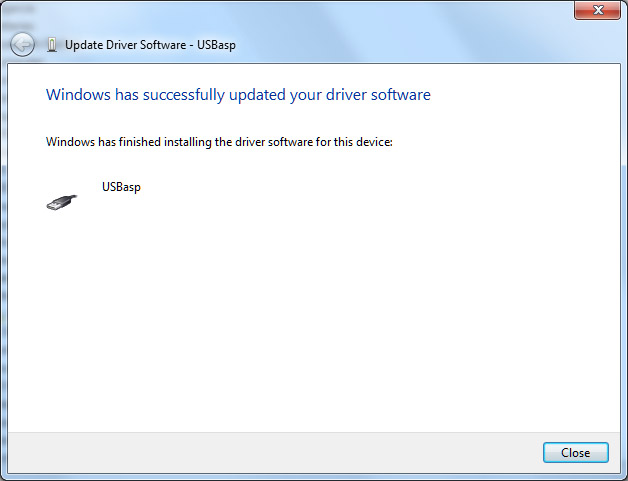
- Click “Install this driver software anyway” and the driver will install.



Everytime I try to download the new driver for windows 7 I get an empty compressed file folder that appears to be empty. What am I doing wrong? Help please!!
The solution is simple:
Still have problems? Try the 100% Guaranteed ErrorSmart for free!
1. Unplug (not just turn off) you PC.
2. Unplug all your USB devices from your PC (and, heck, any power supplies as well)
3. Wait 30 minutes or more.
4. Plug in your essential USB devices (keyboard, mouse).
5. Plug in your PC, turn it on.
6. Pop in the rest of your USB devices.
What are you using to unzip the file? What is the filesize in bytes? If you clear your cache and download it again, do you have better luck?
I am facing the same problem. The compressed folder seems to be empty
I have the same problem. How do you clear your windows 7 cache?
Depends on what browser you are using. Also, what are you using to to unzip the file?
I had try many time to install the drivers on my system which is windows 7 64 bit to make the usbasp work and i’m still getting the message USb devices not recognized
I also cannot install the new driver, and keep getting unkown device in the usb controller devices, despite updating the drivers in my win7 64bit professionel computer.
First time that I used the new drivers, the usbasp mounted fine, but then due to a dodgy connection (who knows?), it dismounted. After that, it wouldn’t recognise the device. It was then that I discovered that by repeatedly plugging/unplugging the usbasp from the computer, it would eventually recognise it. Sometimes it recognised the device in as little as 3 plug/unplug iterations; other times it took 18 or so goes…but…it eventually recognised it. The board itself could be faulty but then it worked so who knows? Persistence paid off though and I was able to upload the code to the chip.
I can download the driver file OK (270 kb in size), but neither winzip or winrar will unzip it…. winzip says “cannot open file” and winrar says “unexpected end of archive”. I am running Windows XP. I hvae cleared the cache and tried again, still no luck.
Can you please please just post the drivers in unzipped form? This is very frustrating – it seems other people are having the same problem, I don’t know how anyone has been able to open the drivers.
This problem has been going on for way to long.
Whenever I download the file it seems to unzip fine. I’ve tried this from multiple locations. I’ve also tried creating new zip files and re-uploading it, but with no luck. My theory now is that there is some sort of compatibility problem with the zip file.
This morning I re-zipped the file and turned off compression. I’m hoping the compatibility issue is in the compression algorithm. Can you please download it and have another go.
Thanks.
Protostack have replaced my usbasp free of charge and without me even asking. It turned up in the post the other day. Much appreciated and good work for doing this off your own bat. regards…ab
I am getting USB device not recognized message. ZIP file dows not work for me either. I am running Windows 7 x64. Bummer.
A lot of people are having trouble with the zip file. I’m thinking it might be a (zip) file compatibility issue. Anyhow I’ve uploaded a rar file with the driver. Let me know if it helps.
http://www.protostack.com/download/USBasp-win-driver-x86-x64-ia64-v1.2.4.rar
This link helped me out. Thanks for replying to the “problem” people. You avoided my problems.
I am getting the same error “driver provided not recognise”! I am using windows 7 x32.
Hi Albert, did you ever get this problem resolved?. I’m trying everything but I’m still not able to mount the unsigned driver on my windows 7 operating system. Please let me know. And thanks for the time it takes, I’m sure you have better things to do.
cheers Jim
Can you please send a screenshot to support[at]protostack.com.
Thanks.
I have a serious problem. I use win 7 professional. I installed the usbasp drivers and windows recognize the device. I also use bascom-avr for programming Atmel chips. When I try to programm the chip there comes an error” chip differs at bytes address :00000”. My usbasp programmer works perfect on another pc with windows xp.
Do you have any suggestion ??
Thanks in advance
George
thanks, this works
Sorry guys,
mine does not says USBasp when trying to install, it shows unknown device…. no way to tell him to install as a usbasp…and I cannot even pick the drivers with the update/have disk driver option… he refuses it. anyone had the same issue?
Did you purchase the unit from us? If so send us a message via our contact us page (http://www.protostack.com/index.php?main_page=contact_us) with your order number and we’ll send out a new one.
For those who re having a problem with download they can check out this link:
http://www.fischl.de/usbasp/usbasp-windriver.2011-05-28.zip
This is quite irritating.
Why don’t the protostack guys overhaul this post. Just correct the Link internally or post multiple links. I mean nobody wants to waste time over bad links
regards
On a positive note, I downloaded the file, unzipped it fine and installed it with no problems on my laptop running windows 7 64bit. Bascom AVR programs fine using my home made programmer with USBASP.
Now I’ll have to update it on my desktop PC as I did all sorts of things in the registry on that to get the original driver to work 🙂
Thanks for your work
Same problem!
Windows recognized the device the first time as usbasp but now it refuses to recognize it.
This is irritating!
The drivers are available all over the net but this is a hardware issue and if so many people have this, this is supposed to be a manufacturing defect.
I am on Windows 7 64 bit. Someone said that the problem will be fixed on XP. Should I go on installing XP then?
There are many different reasons why you may be having difficulty with the programmer, manufacturing defect although rare is always a possibility. If you purchased it from us and there is a manufacturing defect, we will be more than happy to send you a new one. I just have a couple of questions first.
Does the programmer show up in device manager ?
Are you connecting directly to the PC or via a USB hub ?
Please contact us via the Contact Us page (http://www.protostack.com/index.php?main_page=contact_us) and I will work through the problem with you.
The device shows up in device manager as an unknown device. When I first connected it, it was recognized as usbasp. Then this pc did not recognize it. I connected it to my netbook and it was recognized as usbasp. Their is a sofware deview which shows history of all connected deviced. It also shows that a usbasp has been connected. Should I use a hub? Which hub do I need and what exactly would it do?
The fact that the netbook recognized it suggests that it is not a hardware problem. It also isn’t a driver issue.
Don’t use a hub, it is always best to connect directly into your PC.
One thing to try is disconnect as many USB devices as possible. Boot up with just keyboard and mouse if that is possible, then try inserting the usbasp. Maybe there is some sort of conflict.
Hello,
I installed the drivers on the netbook as soon as it was recognized. Now each time I connect the ASP, it is recognized. It’s working like a charm. This is weird but I guess clearing the information of all past USB devices should resolve the issue for anyone. (I connected it on the netbook for the first time before installing the drivers).
I don’t think there is a clash. A software issue maybe!
In a nutshell, always install the drivers immediately as soon as its recognized to avoid problems.
Besides, this device is awesome. You should add Atmega 16A to the compatibility list. AVRDUDE treats it like atmega16. Both are however, different devices even though their specs are the same (apart from a little difference in that supply voltage range). Thanks for the help though!
Appreciate the tip. When did you install the drivers on your PC ?
Help Me please,
I want to program my ATmega 8535 using USBASP, software CODEVISION AVR, Windows-7. Instalation of my drivers USBASP is succesfully, But Im confuse how to find number of PORTS (COM), because in CODEVISION AVR we must setting the PORTS/COM.
vendar_ok@yahoo.co.id
Thanks a lot 😀 , you saved me from this problem from which i was suffering for a year.
I finally had decided to get rid of windows7 and switch back to windowsXP but thanks to you. 🙂
Great go pal, thanks.!
Its beautiful !!! Thanks , Works fine for me
Hello, I am having the same problem. My Win 7 64bit Home Premium recognises the programmer as USBASP, then the driver instalation fails (so far so good). But then, when I try to install it manually, after I select the driver folder and click next the installer says it couldn’t find the driver. I have tried the drivers from your zip and also the drivers from fischl.de, but nothing works. Can you help me?
ok, it seems that I have solved this problem. read this: http://www.wortelsoft.nl/english/usbasp.html
Thanks a lot. This works fine for me. Tested just now.
I have tried to install this driver, and get a JAVA error when I start the JAR program ?
Please help
you need to install the java runtime. You can get it from the oracle web site
thanksss man it works fine……
i had installed the drivers of my usb avr programmer correctly but it is showing as digitally unsigned………….why?
now after making connections as described above and writing in command prompt as
“avrdude -p atmega16 -P usb -c usbasp -U flash:w:Blink.hex”
it gives error as
“avrdude: error:could not find usb device ‘usbasp’ with vid=0x16c0 pid=0x5dc”.
what should be the reasons? please help me………..
Thank you very much! Works like a charm 😀
Hi everyone, I have installed the USBasp in my computer, it is working great, but I have a question. I would like to be able to program the Nordic Chips(Nrf24LE1 and Nrf24LU1). I have downloaded the eXtreme Burner but it doesn’t have these chips.
Thanks a lot it worked, be well.
Thanks a lot. It is alive)
Hi..
I installed my usbasp programmer to my notebook and updated the driver
I tested it and erased my chip seccessfully but after restarting my notebook it doesn’t recognize it any way (even as a device) :(((((
what can I do ????
please help me
(the power led on the programmer is on)
thanx a lot man!!
driver is installed. but it doesen’t show the com port.
i need the com port number to program.
plz help me as soon as possible.
Thanks a lot…
It works…. 🙂
Thanks so much 😉
It was very useful.
I had try many time to install the drivers on my system which is windows 7 64 bit to make the usbasp work and I do all the steps that the site said but in the last step my computer note that “windows has determined that driver software for your device is up to date” and my usb connection is unknown device and i’m still getting the message USb devices not recognized
Sounds like a faulty unit. Send us a message via the contact us page http://www.protostack.com/index.php?main_page=contact_us with your order number and I’ll send out a new one.
I have a Windows 8 computer and I cannot get it to update the driver for the USBasp programmer. I tried starting up while holding F8 and also downloaded overrider software. No success.
have you find the solution
I couldnt get the driver running on windows 7. It was reported as having known issues.
The best solution I found was to use Oracle VMWare to run a virtual version of Windows XP. You can direct the USB device to the virtual machine. You will need an older version of the Java Runtime – 1.6 is best. The latest versions of java wont work on XP. Once I went through all that , the programming went like a dream.
How can I install the driver for win8.1 …. you can help me with …thanks
A very heartly thanks !!!!!
You download the software Easy Driver Pack for Win8 x64 at download here (Chinese version), after downloading, run the .exe file. For other Windows versions, you accessed at http://storesofts.wordpress.com/ and search by keyword Easy Driver Pack
it doesn’t work on step 9 windows doesn’t recognize drivers, plz help me
Worked great for me, thanks!
(I use a Chinese MK-USBISP V3.01 for 2,5 Euro)
its not working in windows 7 64 bit bt wrkng wth 32 bit????????
i was wondering if it could be applied to another drivers from Drivers Focus
Excellent web site. Lots of useful info here.
I’m sending it to a few pals ans also sharing in delicious.
And obviously, thank you to your sweat!
thanks man!i have been searching the net for a month now but coudn’t find the driver for 32 bit windows 7.But the driver on this site worked so easily..thanks a ton 🙂
Hello,
thx for the Drivers. But one question, i have a Problem with the usbasp. I can use it once with avrdude and then, i got an error that the device is not present. I must unplug it from the usb-port. Then i must plug it in again, can it use once and then the same error. But, every operation with the usbasp is successfully. What can be the reason for this behavior?
Thanks, no problem with the unsigned driver installation on windows 10.
But i was wondering why it doesn’t show a COM port device in device manager?
Is it normal?
Thanks in advance for you replies
http://openelectronicsproject.blogspot.in/2015/06/how-install-usbasp-driver-in-window-7.htm
I had try many time to install the drivers on my system which is windows 7 32 bit to make the usbasp work into libusb-win32. any one can help ?
Guys who need windows 7 key download link: # http://www.instructables.com/id/Windows-Office-Key.
Hace unos días, me dieron una de las ventanas 7 clave de una página: http://www.instructables.com/id/C%C3%B3mo-Reparar-Error-0xC004F074-De-Microsoft-Word/. Después yo uso la tecla. Clave no sólo funciona sino que es genuino. La esperanza también puede ayudar.
ok. thanks
I tried to update the USBasp driver but message indicated “The third party INF does not contain digital signature information.” Now what?
Hello guys
Even i had the same problem i tried all the solutions mentioned in many websites but none of them helped me.Finally what i found was there was some fault with my connecting cable.before you do anything please check the cable first…….
i am facing problem with 8051 pocket programmer usb kit driver.even i download the driver from same websit where i parchesed this kit i am using window10. 64 bit system please contact with my mail
What did they say when you contacted them?